
ShadowCursor — User Manual & Tutorial
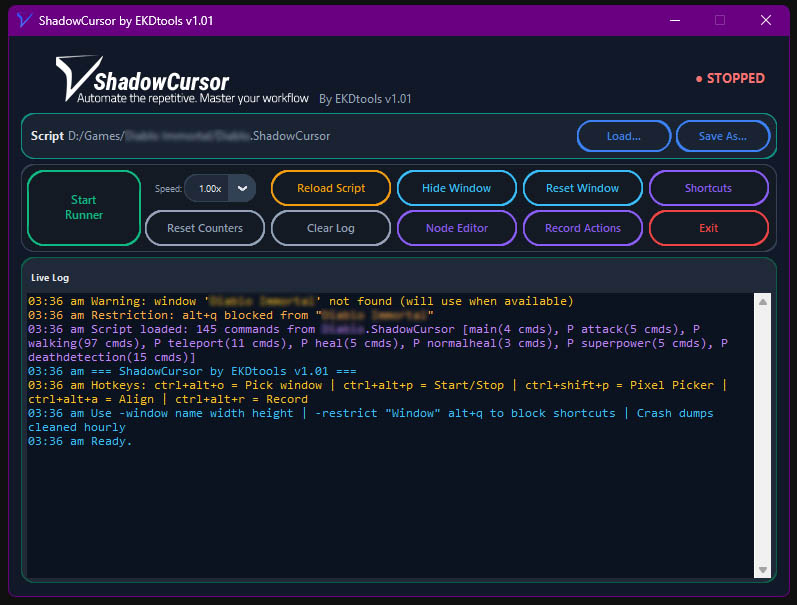
This manual is a comprehensive, end-user guide to ShadowCursor: a Windows automation tool that combines macro recording, a node-based graph editor, and a scripting language to control mouse moves, clicks, key presses, and pixel-based detection. All coordinates are relative to the target window’s client area, so you can move the window on screen and scripts still work.
Section 1: High-Level Overview & Workflow
1.1 Overarching Philosophy
ShadowCursor is built around one idea: you can build automation in three complementary ways, and mix them in the same workflow.
- Macro recording (Action Record System) — You perform actions (clicks, keys, window picks); the program writes the equivalent script lines for you. Best for capturing real sequences quickly.
- Node Graph Editor — You build or edit scripts visually with nodes and connections. Best for structure, flow, and seeing how sections and commands connect.
- Written scripts — You edit
.ShadowCursortext files directly. Best for fine-tuning, bulk edits, and version control.
The same script file is the single source of truth: the macro recorder appends to it, the node editor loads and saves it, and you can always open it in a text editor. There are no “modes” that lock you in—use whichever tool fits the task.
1.2 How the Three Tools Work Together
- Macro recording produces a partial script (PRS):
- You choose whether you’re recording for the main script or a persistent (P) script and optionally a buffer.
- While recording, your mouse clicks (left/right) and key presses (including key combos) are turned into
-lclick,-rclick,-k,-kc,-window, and-w(waits) and appended to the recorder’s text area. - You can save that as a
.ShadowCursorfile and merge it into your main script, or paste it manually into the script.
- Node editor:
- Opens your current script (or any
.ShadowCursorfile) and shows sections (e.g.main,P walking) and command nodes (each script line as a node). - You add/delete nodes, connect them with flow (order of execution) and link (e.g.
-start/-stoptargeting a section). - Saving from the node editor overwrites the file; you can also “Load in ShadowCursor” so the main app reloads the script.
- Opens your current script (or any
- Written scripts:
- You can add sections, reorder commands, tweak numbers (coordinates, waits, pixel colors), and add comments (
#or//) anywhere. - The main app reloads the script when you click Load or when the node editor asks to reload; the runner uses whatever is currently loaded.
- You can add sections, reorder commands, tweak numbers (coordinates, waits, pixel colors), and add comments (
So: record a rough pass, refine in the node editor or in text, then run from the main window. You can alternate between tools on the same file.
1.3 Getting Started — Step by Step
- Install and run ShadowCursor
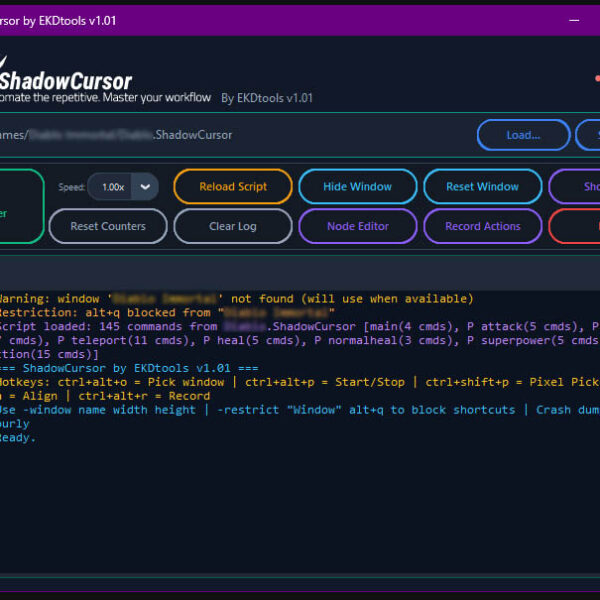
Start the application. The main window shows the current script path, Start/Stop, and tools (Record, Node Editor, Load, etc.). - Set your target window
Your script needs at least one-window "Window Title" width heightso the program knows which window to move, resize, and send input to. Use Window Picker (default hotkey Ctrl+Alt+O): click the desired window; its title and size are copied to the clipboard. Paste into your script or add a Target Window node in the node editor. - Choose how to build the script
- Quick capture: Click Record Actions, choose Main or Persistent and (if P) the name, then press the recording hotkey (Ctrl+Alt+R). Perform clicks and key presses; stop recording and Save PRS or copy the text into your script.
- Visual structure: Click Node Editor, add sections and command nodes from the palette, connect flow and link edges, then save.
- Text only: Create or open a
.ShadowCursorfile, add amainorP namesection and commands under it (see Section 3).
- Load the script
In the main window, use Load (or the last script loads automatically). Ensure the script has amainsection if you want to run it with Start. - Run
Press Start (or the Start/Stop hotkey, default Ctrl+Alt+P). The main script runs; it can start/stop persistent scripts with-start/-stop. Use Speed in the GUI to scale wait times (e.g. 2.0x = half the real-time duration). - Useful hotkeys (defaults)
- Ctrl+Alt+P — Start / Stop Runner
- Ctrl+Shift+P — Pixel Picker (click to get client-relative x y and color; copied to clipboard)
- Ctrl+Alt+O — Window Picker
- Ctrl+Alt+A — Align target window to (0,0) at the script’s resolution
- Ctrl+Alt+R — Toggle macro recording
You can change these in Shortcut Settings in the app.
Section 2: Using the Visual Tools (Nodes & Macros)
2.1 Macro Recorder (Action Record System)
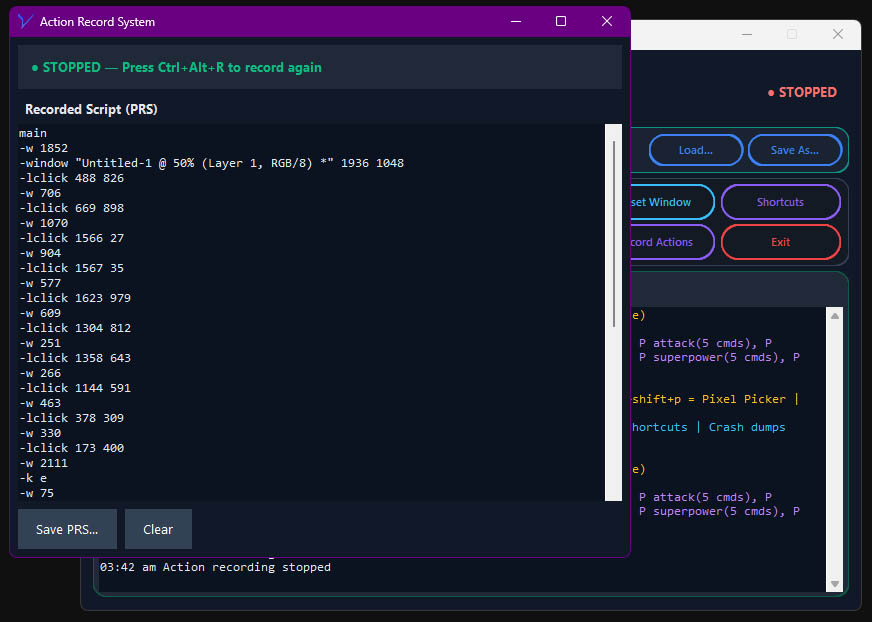
Purpose: Record your real actions (mouse and keyboard) and get script lines without typing commands.
How to use it:
- In the main window, click Record Actions.
- Choose script type:
- Main Script — recorded lines are intended for the
mainsection. - Persistent Script — enter a name (e.g.
walking); recording is for aP walkingsection.
- Main Script — recorded lines are intended for the
- The Action Record System window opens. The status shows READY or RECORDING.
- Press the recording hotkey (Ctrl+Alt+R) to start recording. Status turns to RECORDING (red).
- Perform actions in other applications:
- Left/right mouse clicks — recorded as
-lclick x yor-rclick x y(client coordinates of the window under the cursor). If you click a different window, a-window "Title" w hline is inserted first. - Key presses — single keys as
-k key; with Ctrl/Alt/Shift held as-kc ctrl+alt+key. - Waits — automatic: if more than 50 ms passes between two recorded actions, a
-w <ms>line is inserted.
- Left/right mouse clicks — recorded as
- Press Ctrl+Alt+R again to stop recording.
- Use Save PRS… to save the text as a
.ShadowCursorfile, or Clear to empty the editor. You can then merge or paste the content into your main script.
Notes:
- Recording ignores key presses when the recorder window is focused and ignores the hotkey combo itself.
- Only keys that ShadowCursor supports are recorded: letters, digits, space, tab, esc, enter, arrows, function keys (F1–F12 and beyond where supported), navigation keys (home, end, pageup, pagedown, insert), special-character keys (semicolon, comma, period, minus, equals, slash, backslash, brackets, quote, backtick), and printable symbols (e.g. ! @ # $ % ^ & * when typed as a character). Unsupported keys are skipped.
- Coordinates are client-relative to the window you clicked.
2.2 Node Editor — Navigation and Basics
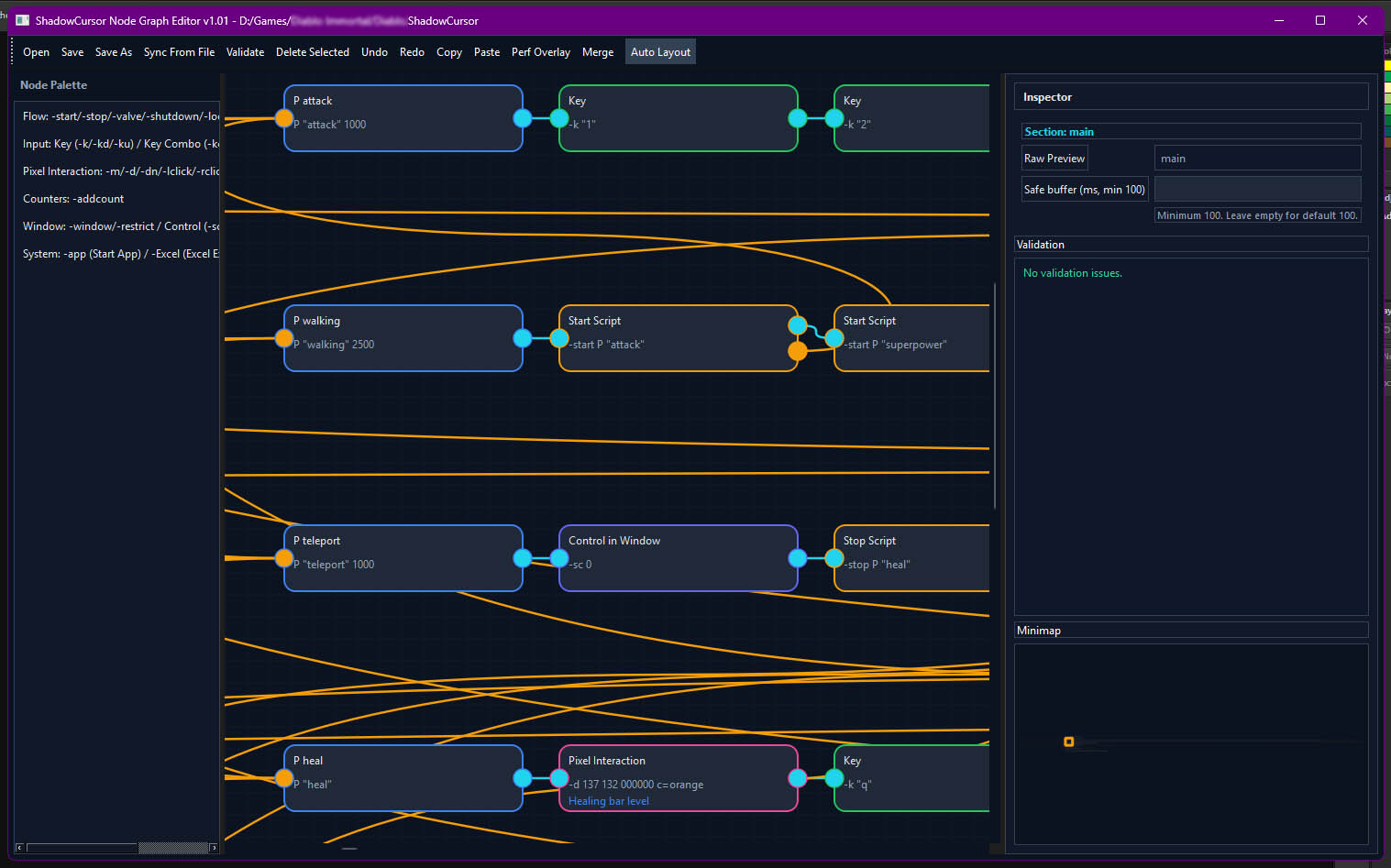
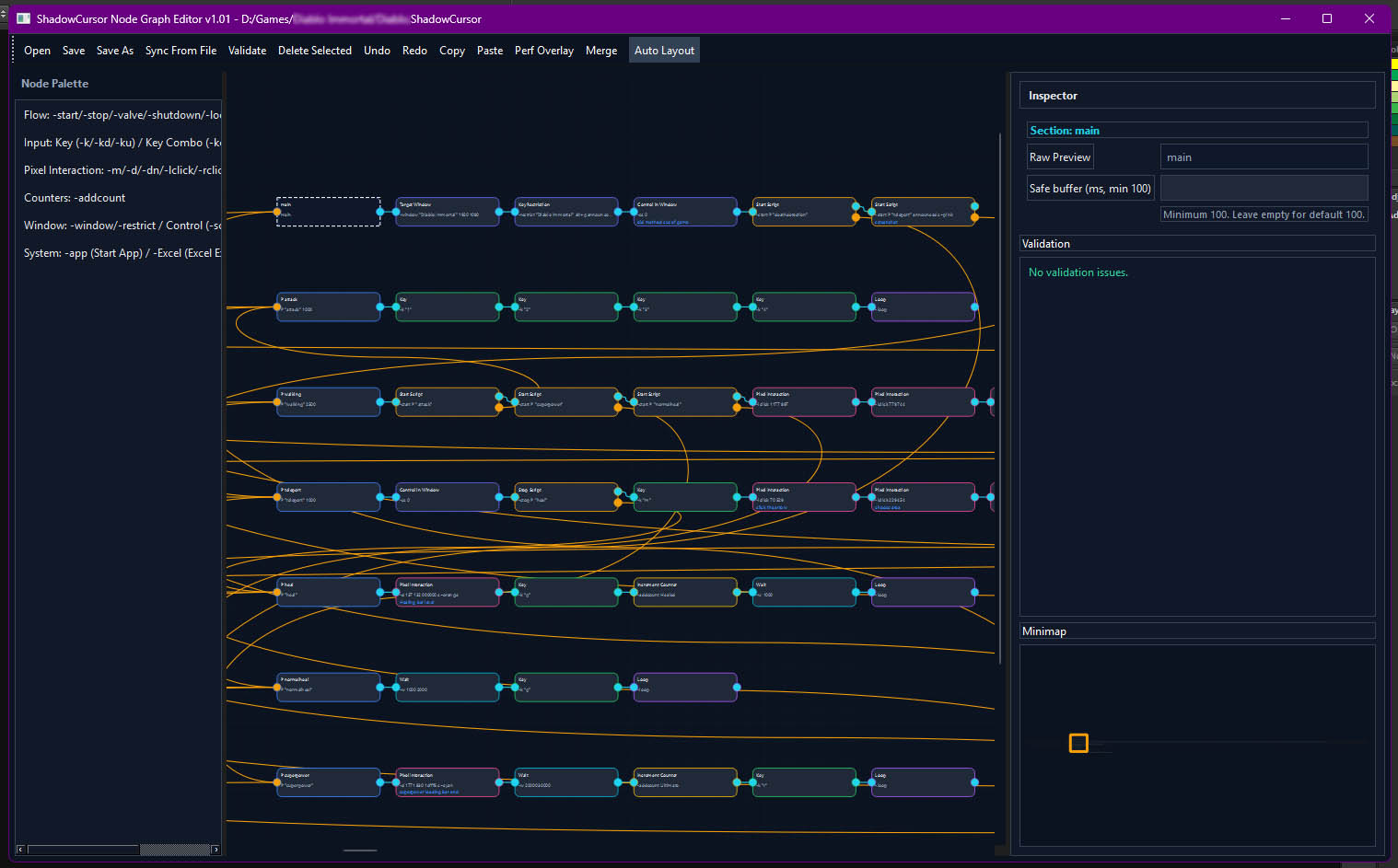
Purpose: Edit ShadowCursor scripts as a graph of sections and command nodes, with flow (execution order) and link (e.g. -start/-stop → section).
Opening: Click Node Editor in the main window. The editor opens in a separate process and loads the current script (or the one you passed). If the script path is missing, it may start empty.
Main areas:
- Canvas — Sections appear as header nodes; each command is a node. You drag nodes to arrange them.
- Palette / Add menu — Add new sections or command nodes by category (Flow, Input, Pixel Interaction, Counters, Window, System).
- Inspector — When you select a node, the right panel shows its parameters (e.g. wait time, key, coordinates, pixel list) and an optional Comment field. Edit there; the “Raw Preview” shows the resulting script line. Comments are stored as a
// commentline immediately after the command in the script and are shown on the node (up to 30 characters) in blue. - Toolbar — New section, Load, Save, Undo/Redo, validation, “Load in ShadowCursor”, etc.
Comments on nodes:
- Each command node can have an optional Comment. In the Inspector, use the Comment field; the text is saved as a
// commentline right after that command in the script. On the canvas, the comment is shown below the node subtitle (up to 30 characters) in blue.
Connections (rubber bands):
- Flow — Defines order of execution: section → first command → next command → …
Draw from a section header to a command, or from one command to another. Flow edges are cyan. - Link — Connects a -start, -stop, or -valve node to the section it targets. Draw from the command node to the section header. Link edges are orange.
When you save, the node editor writes the target section name into the command (e.g.-start P walking).
Behavior (user rules):
- No automatic connections: you explicitly draw flow and link.
- Validation is on the node: invalid parameters (e.g. bad key, missing pixel) turn the node red. You can still connect nodes even if invalid; the script may error at run time.
Saving: Save updates the .ShadowCursor file. “Load in ShadowCursor” writes a small file so that when you close the node editor, the main app reloads the script automatically.
2.3 Every Node Type — Settings & Alternatives
Below, Node Name is the label in the palette/menus; What it does and Settings & Alternatives describe behavior and all ways to configure it. All command nodes support an optional Comment in the Inspector (stored as a // comment line after the command; shown on the node up to 30 characters).
Flow
Node Name: Start Script
- What it does: Starts another script section (main or a persistent P section). The target section runs in a separate thread and can loop.
- Settings & Alternatives:
- Target: main or P (Persistent). For P, set the P (process name) (e.g.
walking→-start P walking). - Buffer override (ms): Optional. Overrides the target section’s buffer for this start (must be >= target’s buffer to take effect).
- Announced: If checked, the program prints a message when this start runs (e.g. “P walking started”).
- Announcement color: Optional debug color for that message (red, blue, green, purple, orange, yellow, cyan, pink, white, grey).
- Link edge: In the node editor, connect this node to the section node you want to start; on save, the target is set from that link.
- Target: main or P (Persistent). For P, set the P (process name) (e.g.
Node Name: Stop Script
- What it does: Stops a running script section (main or P).
- Settings & Alternatives:
- Target: main or P; for P, set the P (process name).
- Announced and Announcement color: Same as Start Script.
- Link edge: Connect this node to the section to stop; on save, the target is set from that link.
Node Name: Valve
- What it does: A countdown-based trigger. Each time execution passes through the valve, the countdown decrements by 1. When it reaches 0, the valve fires: if a target section is linked, it starts that section; if no target, it stops the current section. After firing, the valve blocks further passes (the section effectively ends there).
- Settings & Alternatives:
- Countdown: Positive integer. The number of passes before the valve fires.
- Link edge: Optional. Connect to a section to start when the countdown reaches 0. If no link, the valve stops its own section instead.
Node Name: Loop
- What it does: Repeats all commands from the start of the section up to (but not including) this node.
- Settings & Alternatives:
- count: Positive integer = repeat that many times. Empty = infinite loop (section runs until stopped).
- In the script:
-loop(infinite) or-loop 5(five times).
Node Name: Wait
- What it does: Pauses for a number of milliseconds. The actual delay is (section buffer + wait value), scaled by play speed.
- Settings & Alternatives:
- wait_ms: Integer. Can be 0 (only the section buffer runs). Negative values reduce the total wait (advanced).
- Random range: Check the “Random range” checkbox, then set wait_max_ms. Each time the command runs, it picks a random value between wait_ms and wait_max_ms.
Node Name: Shutdown
- What it does: Shuts down the Windows PC. Restores any disabled windows first, force-kills running processes, then calls
shutdown /s /f /t 5. - Settings & Alternatives: None. This is a one-way command — use with extreme caution.
Input (Keys)
Node Name: Key
- What it does: Sends a key press (down+up) to the target window. Can send a single key (including function keys and special-character key names) or a phrase (multiple characters, including symbols).
- Settings & Alternatives:
- Mode: Key Press (-k), Key Down (-kd), Key Up (-ku).
- Key: Single key (e.g.
a,space,enter,up,f1,semicolon,home) or a phrase (e.g.helloorHello! 123). Single-key names include function keys (f1–f12, etc.) and special keys (semicolon, comma, period, minus, equals, slash, backslash, lbracket, rbracket, quote, backtick). - Phrase buffer (ms): For
-kwith a multi-character phrase, delay between characters (min 30 ms). Omit for single keys.
Node Name: Key Down
- What it does: Sends only key down (no key up). Use for holding a key.
- Settings & Alternatives: Same key field as Key (single keys only: letters, digits, function keys, navigation, special-character key names like semicolon, comma, etc.); no phrase buffer.
Node Name: Key Up
- What it does: Sends only key up. Use after a Key Down to release.
- Settings & Alternatives: Same key field; single keys only (same set as Key / Key Down).
Node Name: Key Combination
- What it does: Sends a modifier combo (e.g. Ctrl+A): modifiers down, key press, modifiers up.
- Settings & Alternatives:
- Modifiers: Ctrl, Alt, Shift (checkboxes).
- Key: The non-modifier key (e.g.
a,enter).
Node Name: Random Keys
- What it does: Types a random string of a given length, drawn from chosen character sets (numbers, uppercase, lowercase). Each character is typed with a per-character delay.
- Settings & Alternatives:
- Character types: Numbers, Upper, Lower (checkboxes; at least one must be checked).
- Length: Positive integer — how many random characters to type.
- Buffer (ms): Delay between characters (min 30 ms).
Pixel Interaction
In the node editor, Pixel Interaction is a single unified node with 8 modes. You switch between modes via the Mode dropdown in the inspector; coordinates are preserved where applicable.
Node Name: Left Click
- What it does: Performs a left mouse click.
- Settings & Alternatives:
- Use last position: If checked (default), clicks at the last position set by a previous move or click.
- x, y: If “use last position” is off, click at (x, y) (client-relative).
Node Name: Right Click
- What it does: Performs a right mouse click.
- Settings & Alternatives: Same as Left Click (last position or explicit x, y).
Node Name: Double Click
- What it does: Performs a double left-click (sends click, then double-click message). Use for opening files, selecting words, activating items.
- Settings & Alternatives: Same as Left Click (last position or explicit x, y).
Node Name: Middle Click
- What it does: Performs a middle mouse button click. Use for opening links in new tabs, paste, or game-specific interactions.
- Settings & Alternatives: Same as Left Click (last position or explicit x, y).
Node Name: Move Cursor
- What it does: Moves the mouse cursor to (x, y) in the target window’s client area. Also sets the internal “last position” that click commands can use when coordinates are omitted.
- Settings & Alternatives:
- x, y: Integers. (0,0) = top-left of client area.
Node Name: Scroll
- What it does: Sends a mouse wheel scroll event to the target window at position (x, y).
- Settings & Alternatives:
- x, y: Position in the window’s client area.
- Direction:
upordown. - Amount (notches): Positive integer. Each notch = 120 wheel delta units. Default is 3.
Node Name: Pixel Detection
- What it does: Waits until all listed pixels have the given colors at the given coordinates (client-relative). When all match, script continues. Uses a double-check (confirms after 100ms) to avoid transient matches.
- Settings & Alternatives:
- pixels (x y color): One or more lines, each
x y color. Color is 6-digit hex (e.g.ff0000);#is stripped. - Announcement color: Optional. When the condition is met, the printed “PIXEL MATCH SUCCESS!” message uses this debug color.
- pixels (x y color): One or more lines, each
Node Name: Pixel NOT Detection
- What it does: The inverse of Pixel Detection. Waits until at least one specified pixel does NOT match its expected color (i.e. something changed). Uses a double-check (confirms after 100ms). Use for “wait until loading disappears” or “wait until a state changes.”
- Settings & Alternatives: Same as Pixel Detection — pixels list and optional announcement color.
Counters
Node Name: Increment Counter
- What it does: Increments a named counter by 1. Used for statistics or simple counting; counters are displayed in the live log when their values change.
- Settings & Alternatives:
- counter_name: Any name (e.g.
default,clicks). If omitted in script,defaultis used.
- counter_name: Any name (e.g.
Window
Node Name: Target Window
- What it does: Sets which window is the “target” for all subsequent input and pixel checks. Also sets the resolution (width x height) the app uses to align/resize the window. Optionally enables automatic screenshot capture.
- Settings & Alternatives:
- window_name: Exact window title. Use quotes if it contains spaces (e.g.
"My Game"). - width, height: Integers; the window will be moved/resized to this client size when needed.
- Screenshot: Check to enable. Set Interval (ms) (min 1000ms at runtime), Announce checkbox, and optional Announcement color.
- window_name: Exact window title. Use quotes if it contains spaces (e.g.
Node Name: Key Restriction
- What it does: Blocks a key combination only in windows whose title matches the given name. Used to prevent a shortcut in a game/app from firing while automation runs.
- Settings & Alternatives:
- Window name: Title (or part of it) to match.
- Modifiers: Ctrl, Alt, Shift, Win (checkboxes).
- Key: The key (e.g.
q,enter). Combo must be likealt+q. - Announced and Announcement color: Optional; print when the restriction is applied.
Node Name: Control in Window (Stop/Resume Controls)
- What it does:
- -sc (Stop Controls): Disables the target window so it does not receive user input. Also blocks the scroll wheel.
- -rc (Resume Controls): Re-enables the target window.
- Settings & Alternatives: In the node editor you switch between “Stop Controls (-sc)” and “Resume Controls (-rc)”. For -sc, choose between “Old method” (better for games) and “New method” (better for control). Same effect as restoring control when the runner stops or exits.
System
Node Name: Start/Kill App
- What it does: Launches or kills an external application.
- Settings & Alternatives:
- Full app address: Path to the executable (e.g.
C:\Windows\regedit.exeorcmd.exe). File browser available via...button. - Command-line arguments: Optional arguments passed to the app.
- Action: Start or Kill (radio buttons).
- Run with admin privilege: If checked, launches with
runaselevation.
- Full app address: Path to the executable (e.g.
Node Name: Excel Extraction
- What it does: Reads a cell value from an Excel file (.xlsx) and copies it to the clipboard. The row auto-advances each time the command runs (first call reads row 1, next reads row 2, etc.). When the column runs out of data, the section stops (or repeats from row 1 if Repeat mode is on).
- Settings & Alternatives:
- Excel file: Path to the
.xlsxfile. File browser available. - Column tag: Column letter(s) (A, B, C, … Z, AA, AB, etc.).
- When no more data: Stop (halt section) or Repeat (loop back to row 1).
- Announcement and Announcement color: Optional; prints the extracted value.
- Excel file: Path to the
Node Name: Sound
- What it does: Plays a system beep or a sound file. Use as a notification when automation reaches a milestone or for debugging.
- Settings & Alternatives:
- Sound file: Leave empty for a system beep (1000 Hz, 200 ms). Or select a
.wavfile. File browser available via...button.
- Sound file: Leave empty for a system beep (1000 Hz, 200 ms). Or select a
Section 3: The Complete Scripting Dictionary
Script files are plain text, UTF-8. Lines starting with # or // are comments and ignored. Inline comments can be added with // comment after a command. Empty lines are allowed.
Sections: A line that is exactly main or main 100 (or m) starts the main section; a line starting with P (e.g. P walking or P walking 1500) starts a persistent section. The number after main or after the P name is the buffer in milliseconds (default 100) added after each command before the next.
Coordinates: All x, y in commands are client-relative to the target window set by -window. (0,0) is the top-left of the client area.
Command: -window
- Description & Use Case: Sets the target window by title and its intended size (width x height). All input and pixel commands use this window. Optionally enables periodic screenshots.
- Parameters & Flags:
-window "Window Title" width height [screenshot interval announce] [c=color]- Window title: exact or partial match; use double quotes if the title contains spaces.
- width, height: positive integers (client size).
- screenshot: keyword, followed by interval_ms (min 1000 at runtime), then 1 (announce) or 0 (silent).
- c=color: debug color for screenshot announcements.
- Valid Examples:
-window "Notepad" 800 600-window Excel 1920 1080-window "My Game" 1920 1080 screenshot 5000 1-window "My Game" 1920 1080 screenshot 5000 1 c=green- Switch targets mid-run:
-window "Game Window" 1920 1080
-lclick 100 100
-window "Chat Window" 800 600
-k "hello" 40
- Invalid Examples:
-window "Notepad" 800(missing height)-window "Notepad" abc 600(width/height must be integers)
Command: -restrict
- Description & Use Case: Blocks a key combination in windows whose title matches the given name (e.g. prevent Alt+Q from closing a game while the script runs).
- Parameters & Flags:
-restrict "Window Name" modifier+key [announced] [c=color] - Valid Examples:
-restrict "My Game" alt+q-restrict "My Game" alt+q announced-restrict "My Game" alt+q announced c=red-restrict "My Game" ctrl+shift+w
- Invalid Examples:
-restrict "My Game" q(must bemodifier+key, e.g.alt+q)-restrict "My Game" alt+f13(unsupported key)
Command: -w
- Description & Use Case: Waits for a number of milliseconds. Total delay = section buffer + value, then scaled by play speed. With two values, waits a random time between min and max each execution.
- Parameters & Flags:
-w value— fixed wait.
-w min max— random wait between min and max (inclusive).
Also supports suffix form:-w500.
Integer values. Negative is allowed in fixed mode (reduces total wait). - Valid Examples:
- Fixed wait:
-w 1000,-w 0,-w 500 - Suffix form:
-w500,-w0 - Negative (reduces buffer):
-w -50 - Random range:
-w 500 2000,-w 100 500,-w 1000 5000 - No value (treated as 0):
-w - Example workflow with random waits:
-lclick 100 200
-w 300 800
-lclick 200 300
-w 500 1500
-k enter
- Fixed wait:
- Invalid Examples:
-w abc(must be an integer)-w 2000 500(max must be >= min)
Command: -k
- Description & Use Case: Sends a key press (down then up) to the target window. Use for single keys or for typing a phrase.
- Parameters & Flags:
-k keyor-k "phrase" [buffer_ms]
Supported single keys (by name): a–z, 0–9, space, tab, esc, enter, backspace, delete, up, down, left, right, shift, ctrl, alt; f1–f12; semicolon, comma, period, minus, equals, slash, backslash, lbracket, rbracket, quote, backtick. - Valid Examples:
- Single keys:
-k a,-k space,-k enter,-k f1,-k semicolon,-k up - Phrases:
-k hello,-k hello 40,-k "hello world",-k "hello, world!" 60,-k "price=$99" - Hold and release pattern:
-kd shift
-k a
-ku shift
- Single keys:
- Invalid Examples:
-k(missing key/phrase)
Command: -kd
- Description & Use Case: Sends only key down (no key up). Use when you need to hold a key.
- Parameters & Flags:
-kd key
Single key only (same set as-k); no phrase. - Valid Examples:
-kd shift,-kd ctrl,-kd a,-kd f5- Hold a key while clicking:
-kd shift
-lclick 100 200
-lclick 200 300
-ku shift
- Invalid Examples:
-kd(missing key),-kd "ab"(phrases not supported)
Command: -ku
- Description & Use Case: Sends only key up. Use after
-kdto release a key. - Parameters & Flags:
-ku key
Single key only. - Valid Examples:
-ku shift,-ku ctrl,-ku a - Invalid Examples:
-ku(missing key),-ku "ab"(phrases not supported)
Command: -kc
- Description & Use Case: Sends a key combination: modifiers down, key press, modifiers up.
- Parameters & Flags:
-kc modifier+key
Modifiers: ctrl, alt, shift. Key: one of the supported single keys. - Valid Examples:
-kc ctrl+a,-kc alt+enter,-kc ctrl+shift+w,-kc ctrl+alt+delete,-kc alt+tab- Copy-paste pattern:
-kc ctrl+a
-w 100
-kc ctrl+c
-w 100
-kc ctrl+v
- Invalid Examples:
-kc(missing combo),-kc a(no modifier),-kc ctrl+@(unsupported key)
Command: -R
- Description & Use Case: Types a random string of a given length drawn from the selected character sets.
- Parameters & Flags:
-R numbers upper lower length [buffer_ms]- numbers: 1 = include digits, 0 = no.
- upper: 1 = include uppercase, 0 = no.
- lower: 1 = include lowercase, 0 = no.
- At least one must be 1.
- length: positive integer.
- buffer_ms: optional delay between characters (min 30 ms).
- Valid Examples:
-R 1 1 1 10(All character types, length 10)-R 1 0 0 6(Digits only, length 6)-R 0 1 0 8 50(Uppercase only, length 8, 50ms delay)-R 1 0 1 12(Lowercase and numbers, length 12)
- Invalid Examples:
-R 0 0 0 5,-R 1 1 1 0,-R 1 1 1
Command: -m
- Description & Use Case: Moves the mouse cursor to (x, y) in the target window’s client area. Also sets the internal “last position”.
- Parameters & Flags:
-m x y - Valid Examples:
-m 100 200,-m 0 0,-m 960 540 - Invalid Examples:
-m 100(missing y),-m a b(must be integers)
Command: -lclick
- Description & Use Case: Performs a left mouse click. With coordinates, clicks at (x, y) and updates last position; without, clicks at the last position.
- Parameters & Flags:
-lclickor-lclick x y - Valid Examples:
-lclick 50 50,-lclick 960 540-m 50 50then-lclick- Click sequence:
-lclick 100 100
-w 200
-lclick 200 200
-w 200
-lclick 300 300
- Invalid Examples:
-lclick 50(missing y)
Command: -rclick, -dclick, -mclick
- Description: Performs a right click, double left-click, or middle mouse button click respectively. Same coordinate rules as
-lclickapply. - Parameters & Flags:
-rclick [x y],-dclick [x y],-mclick [x y]
Command: -scroll
- Description & Use Case: Sends a mouse wheel scroll event to the target window at the given position.
- Parameters & Flags:
-scroll x y direction amount- direction:
upordown. - amount: positive integer, default 3 (each notch = 120 delta).
- direction:
- Valid Examples:
-scroll 500 400 up 3,-scroll 500 400 down 5 - Invalid Examples:
-scroll 500 400,-scroll 500 400 left 3,-scroll 500 400 up 0
Command: -d
- Description & Use Case: Waits until all specified pixels have the given colors at the given (client-relative) positions.
- Parameters & Flags:
-d x1 y1 color1 [x2 y2 color2 ...] [c=color]
Colors: 6-digit hex, e.g.ff0000. - Valid Examples:
-d 100 200 ff0000-d 10 10 00ff00 50 50 0000ff- Wait for a button to appear, then click:
-d 500 300 22c55e
-lclick 500 300
- Invalid Examples:
-d(missing values),-d 100 200(missing color),-d 100 200 gg0000(invalid hex)
Command: -dn
- Description & Use Case: The inverse of
-d. Waits until at least one specified pixel does NOT match its expected color. - Parameters & Flags: Same syntax as
-d. - Valid Examples:
-dn 960 540 ffffff- Wait for loading to end, then click:
-dn 960 540 aaaaaa c=yellow
-w 200
-lclick 500 400
Command: -addcount
- Description & Use Case: Increments a named counter by 1.
- Parameters & Flags:
-addcount name(If omitted,defaultis used.) - Valid Examples:
-addcount clicks,-addcount
Command: -start
- Description & Use Case: Starts a script section (main or a P section). The section runs in its own thread.
- Parameters & Flags:
-start mainor-start P name [buffer] [announced] [c=color] - Valid Examples:
-start main,-start P walking,-start P walking 1500 announced c=blue - Invalid Examples:
-start,-start walking(missingP)
Command: -stop
- Description & Use Case: Stops a running script section (main or P).
- Parameters & Flags:
-stop mainor-stop P name [announced] [c=color] - Valid Examples:
-stop main,-stop P walking
Command: -valve
- Description & Use Case: A countdown-based trigger. When execution passes through the valve enough times, it reaches 0 and fires.
- Parameters & Flags:
-valve [P name | main] countdown(Countdown must be a positive integer.) - Valid Examples:
-valve P cleanup 10,-valve main 5,-valve 100 - Invalid Examples:
-valve,-valve 0,-valve -5
Command: -sc & -rc
- Description:
-scdisables the target window so it does not receive user input.-rcre-enables it. - Parameters & Flags for
-sc:
-sc [method](0 = old method, 1 = new method. Default 0.) - Valid Examples:
-sc
-lclick 500 300
-w 1000
-rc
Command: -loop
- Description & Use Case: Repeats all commands from the beginning of the section up to this line.
- Parameters & Flags:
-loop(infinite),-loop N(repeat N times). - Valid Examples:
-loop,-loop 5,-loop 100
Command: -app
- Description & Use Case: Launches or kills an external application.
- Parameters & Flags:
-app "path" [arguments] mode admin- mode:
s(start) ork(kill). - admin:
0(normal) or1(admin).
- mode:
- Valid Examples:
-app "notepad.exe" s 0-app "myapp.exe" k 0
Command: -Excel
- Description & Use Case: Reads a cell value from an Excel file (.xlsx) and copies it to the clipboard. The row auto-increments each execution.
- Parameters & Flags:
-Excel "file.xlsx" column repeat [announced] [c=color]- repeat:
0(stop when empty),1(loop back to row 1).
- repeat:
- Valid Examples:
-Excel "data.xlsx" A 0,-Excel "data.xlsx" B 1 announced
Command: -sound
- Description & Use Case: Plays a system beep or a sound file.
- Parameters & Flags:
-sound(beep),-sound "path.wav"(plays a .wav file),-sound beep.
Command: -shutdown
- Description & Use Case: Shuts down the Windows PC. Use with extreme caution.
- Parameters & Flags: None.
Section Headers
- main or main 100 — Starts the main section. Optional number = buffer in ms (default 100).
- P name or P name 1500 — Starts a persistent section named
name. Optional number = buffer in ms.
Example — Complete script with multiple sections:
-window "My Game" 1920 1080
-restrict "My Game" alt+q

main 100
-start P monitor
-start P worker
-w 5000
-sound beep
-loop

P monitor 500
-d 100 50 ff0000
-sound "alert.wav"
-stop P worker
-w 1000
-start P worker
-loop

P worker 200
-lclick 500 300
-w 300 800
-addcount clicks
-scroll 500 400 down 3
-w 200
-dclick 600 400
-w 500
-loop
Section 4: Quick Reference Table
| Command | Category | Syntax | Description |
|---|---|---|---|
-window |
Window | -window "title" w h |
Set target window |
-restrict |
Window | -restrict "title" mod+key |
Block a key combo in a window |
-sc |
Window | -sc [method] |
Disable target window input |
-rc |
Window | -rc |
Re-enable target window input |
-w |
Flow | -w ms or -w min max |
Wait (fixed or random) |
-start |
Flow | -start P name |
Start a section |
-stop |
Flow | -stop P name |
Stop a section |
-valve |
Flow | -valve [target] count |
Countdown trigger |
-loop |
Flow | -loop [count] |
Loop section commands |
-shutdown |
Flow | -shutdown |
Shut down the PC |
-k |
Input | -k key or -k "phrase" [buf] |
Key press or phrase |
-kd |
Input | -kd key |
Key down (hold) |
-ku |
Input | -ku key |
Key up (release) |
-kc |
Input | -kc mod+key |
Key combination |
-R |
Input | -R nums up low len [buf] |
Type random string |
-m |
Pixel | -m x y |
Move cursor |
-lclick |
Pixel | -lclick [x y] |
Left click |
-rclick |
Pixel | -rclick [x y] |
Right click |
-dclick |
Pixel | -dclick [x y] |
Double click |
-mclick |
Pixel | -mclick [x y] |
Middle click |
-scroll |
Pixel | -scroll x y dir amt |
Mouse wheel scroll |
-d |
Pixel | -d x y color [...] |
Wait for pixel match |
-dn |
Pixel | -dn x y color [...] |
Wait for pixel change |
-addcount |
Counter | -addcount [name] |
Increment counter |
-app |
System | -app "path" [args] mode admin |
Start/kill application |
-Excel |
System | -Excel "file" col repeat |
Read Excel to clipboard |
-sound |
System | -sound ["path.wav"] |
Play sound/beep |
This completes the user-facing tutorial and reference. Use the macro recorder to capture actions, the node editor to structure and connect commands, and the script dictionary to edit or write scripts by hand. All three work on the same .ShadowCursor files.
Licensing Terms
Single Machine Use Each license is valid for installation and use on one designated computer only.
Non-Transferable Licenses are tied to the original hardware and cannot be transferred to another machine.
Hardware Modifications Significant changes to the licensed computer’s hardware—such as replacing the motherboard, CPU, or GPU—will render the license invalid. In such cases, a new license purchase is required.
One-Year Validity The license and its associated key remain valid for exactly one (1) year from the date of purchase, provided all other terms are met. After this one-year period, your license key will expire and become invalid, requiring a renewal to continue using the software.
Included Updates Customers will receive free access to all software updates and new versions released during their active one-year license period.
Included Support Email support is included and available for the full one-year duration of your active license. Support requests beyond this one-year period will require a valid, renewed license.
Policy Compliance Usage of the software is subject to the terms and conditions outlined in our website policy.
Prohibited Actions
-
Reverse Engineering: Any attempt to reverse engineer, decompile, or disassemble the software, or use any part of it separately, is strictly prohibited.
-
License Manipulation: Any attempt to manipulate, forge, or tamper with the license file, license key, or the collected hardware ID will result in immediate license invalidation.
-
No Refund Policy: Licenses invalidated due to unauthorized actions—including hardware ID manipulation or reverse engineering—are not eligible for refunds under any circumstances.
Reviews
There are no reviews yet